
Banking
The Banking menu keeps your book balances honest against the bank's version of events.
Bank accounts
Add each business bank account under Banking → Accounts. Every account links to its own ledger account in the chart of accounts, so its live book balance is always visible.
Importing a statement
Export a statement from your bank as Excel and import it under Imports → Bank. Ledgerly reads the common Indian bank formats — dates in any usual notation, narrations, debit/credit or single-amount columns — and finds the header row even when the export puts account details above it. If your bank's layout is unusual, save a mapping template once (Imports → Mapping Templates) and reuse it every month.
You can also paste the statement into the Bank Statement sheet of the import template and bring it in alongside everything else.
Imported transactions appear under Banking → Transactions as unreconciled entries.
Reconciliation
Banking → Reconciliation walks you through matching the statement against your books:
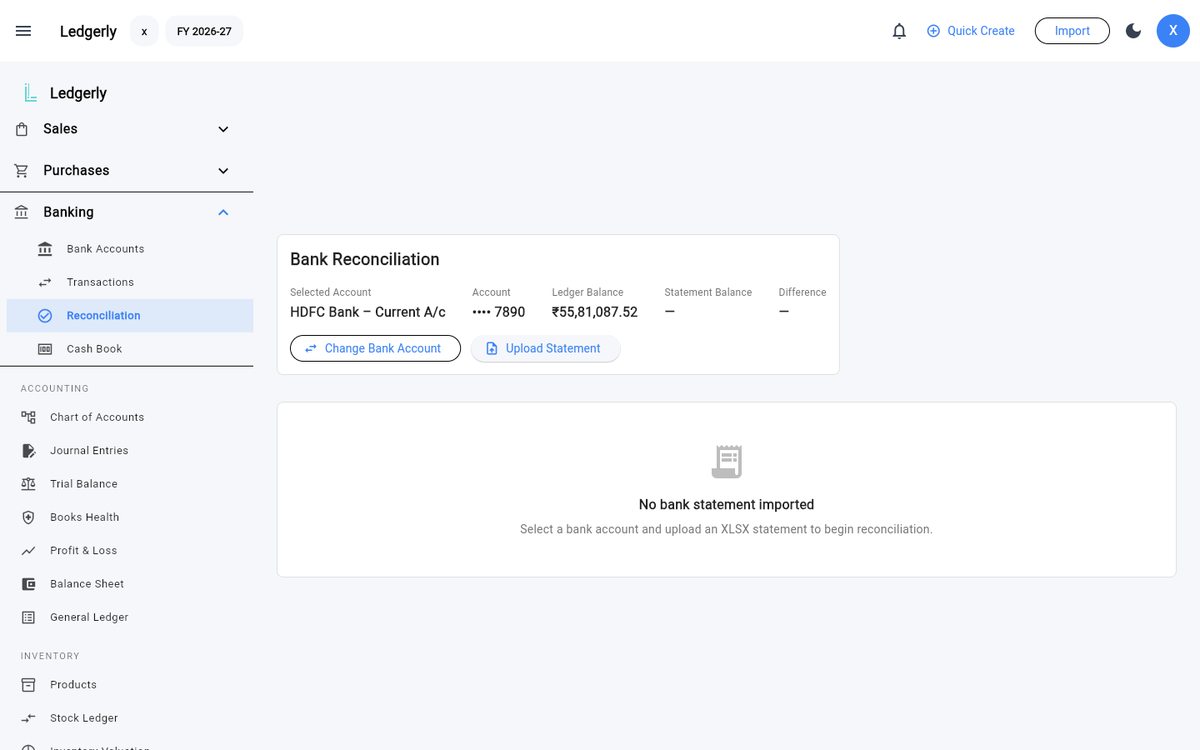
Banking → Reconciliation — pick the account, upload the statement, match and confirm.
- Select the bank account — the header shows the book balance, the statement's closing balance, and the difference.
- Import or pick a statement.
- Review transactions — Ledgerly suggests matches against open invoices, bills and payments.
- Confirm matches — each confirmed match records the transaction as reconciled and posts the journal if one is needed.
The goal: difference ₹0, and every statement line explained.
Expenses that aren't an invoice or a bill
Rent, salaries, bank charges, a government fee — plenty of what leaves your account was never invoiced to you, so there is no document to match it against. Those get categorised rather than matched.
Under the suggestions there's a "None of these?" card, always available whether or not Ledgerly found a match. Categorise to an account opens a short dialog: find the account (the list puts expenses first for money out, income first for money in), edit the description, and check the entry Ledgerly shows you in plain debits and credits before you commit. Post and reconcile writes the journal and clears the line, which then carries an Account chip on the Transactions page.
This is a one-off categorisation — Ledgerly doesn't yet learn that a particular narration always means Rent, so a recurring payment is categorised again next month.
Cash book
Banking → Cash Book is the day-book view of cash and bank movement — receipts and payments in date order, with running balances.